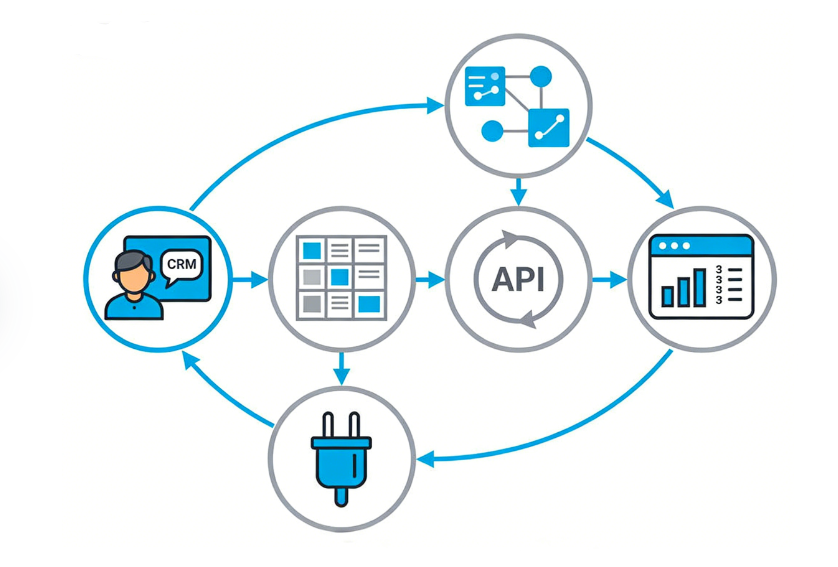
Sales teams live in the CRM (Salesforce, HubSpot, Dynamics 365 Sales). Finance teams live in accounting software (QuickBooks, Xero, SAP, NetSuite). When these systems don’t talk, critical information gets trapped – invoices raised in the accounting system never sync back to the CRM, so salespeople chase payments blindly. Conversely, new customers added in the CRM require manual re‑entry into financial software, introducing errors. Learning how to integrate CRM with existing financial software solves these problems and unlocks a unified customer view.
The High Cost of Disconnected Systems
A survey by Gartner found that organizations waste 20‑30% of operational time manually moving data between CRM and finance systems. Specific pain points:
-
Sales reps don’t know if a customer is overdue on payments before quoting a new order.
-
Finance creates invoices but the CRM shows “order pending.”
-
Discounts approved in CRM are not reflected in the invoice.
-
Credit limits are enforced in financial software but not known to sales.
-
Month‑end reconciliation requires exporting two spreadsheets and using VLOOKUP.
What Data Should Flow Between CRM and Financial Software?
From CRM to Finance:
-
New customer/contact details (billing/shipping address, tax ID)
-
Quotes and sales orders (line items, quantities, agreed prices)
-
Approved discounts and promotions
-
Returns and credit memo requests
From Finance to CRM:
-
Invoice status (draft, sent, paid, overdue)
-
Payment history and current balance
-
Credit limit and available credit
-
Product availability (if finance system includes inventory)
-
Shipping status (if integrated with logistics)
Integration Methods
Method 1: Native connectors – Some CRM and finance software have built‑in integrations (e.g., HubSpot + QuickBooks, Salesforce + FinancialForce). Best for small to mid‑sized businesses.
Method 2: iPaaS (Integration Platform as a Service) – Tools like Zapier, Workato, Tray.io, or Celigo connect any CRM to any finance software via pre‑built connectors and visual workflows. Ideal for custom mappings.
Method 3: Custom API development – Your development team writes code to call REST/SOAP APIs of both systems. Most flexible but highest maintenance.
Method 4: Middleware (ESB) – For large enterprises with many systems, an enterprise service bus (e.g., MuleSoft, Dell Boomi) orchestrates integrations.
Step‑by‑Step Integration Process
Step 1: Map your processes – Document the exact triggers. Example: When a sales order in CRM reaches “Closed Won” status → Create an invoice in financial software.
Step 2: Identify field mappings – Create a table:
| CRM Field | Financial Software Field | Transformation |
|---|---|---|
| Account Name | Customer Name | None |
| Billing Street | Invoice Address | Combine with city/postcode |
| Order Total (USD) | Invoice Amount | Multiply by tax rate if needed |
Step 3: Choose an integration tool – For most SMEs, Zapier (for simple) or Workato (for complex) works well. For Salesforce to NetSuite, Celigo is popular.
Step 4: Set up authentication – Use OAuth 2.0 where possible; store API keys securely.
Step 5: Configure sync direction and frequency – Real‑time (webhook) for critical events like invoice creation; batch (every hour) for less critical updates like payment receipts.
Step 6: Handle duplicates and conflicts – Define a master record (e.g., financial software is master for customer tax ID; CRM is master for sales contact name). When both systems have conflicting data, the master wins.
Step 7: Test in sandbox – Create dummy records and verify the flow end‑to‑end. Check for data truncation (e.g., CRM allows 100‑character product name, finance only 50).
Step 8: Implement error handling – If an invoice fails to create in finance, the integration should log the error and notify an admin, not silently fail.
Step 9: Run parallel for a week – Manual and automated processes side‑by‑side; compare outputs.
Step 10: Go live and monitor – Use the integration tool’s dashboard to track sync volume and error rates.
Common Challenges and Solutions
Challenge: Different data models – CRM treats “Account” as a company; finance treats “Customer” as a bill‑to party with a unique code. Solution: Map CRM Account ID to finance Customer Code; if not present, create automatically.
Challenge: Tax calculations – CRM might not have tax logic. Solution: Let financial software calculate tax; pass only subtotal from CRM.
Challenge: Currency conversion – CRM quotes in USD, finance operates in EUR. Solution: Pass exchange rate from CRM or use finance’s daily rate.
Challenge: Real‑time sync performance – High volume (10k+ orders/hour) may overwhelm APIs. Solution: Batch sync with queueing.
Challenge: Security – Financial data is sensitive. Solution: Ensure integration tool is SOC 2 certified; encrypt data in transit; use IP whitelisting.
Top Integration Scenarios
1. Quote‑to‑cash – CRM quote → order → finance invoice → payment sync back to CRM (shows “paid”).
2. Credit management – Finance sends credit limit and outstanding balance to CRM; CRM blocks order entry if credit exceeded.
3. Product synchronization – Finance is source of truth for product prices and availability; CRM reads this data when building quotes.
4. Returns processing – Return initiated in CRM → credit memo created in finance → inventory adjusted.
Costs of Integration
-
DIY with Zapier – $50‑$500/month depending on tasks and operations.
-
iPaaS (Workato, Celigo) – $800‑$3,000/month for SME plans.
-
Custom development – $10k‑$50k upfront plus ongoing maintenance.
-
Managed integration services – $5k‑$20k implementation fee + monthly.
Future Trends
AI‑powered integration will suggest field mappings based on historical data patterns. Also, embedded iPaaS will become standard in both CRMs and financial software, making integration “click, not code.”
Conclusion
Knowing how to integrate CRM with existing financial software is a core competency for modern businesses. The ROI – reduced manual work, fewer errors, and faster cash flow – is substantial. Start with a pilot integration (e.g., new customer creation) and expand gradually.